What is new in VOD247

What your 24/7 channel can do now that it couldn’t before, newest first.

Your subscriber-only VODs can now air on your 24/7 channel

Two new features just landed on VOD247. Your 24/7 channel can now replay much more than your public VODs.

Subscriber-only VODs are now archived
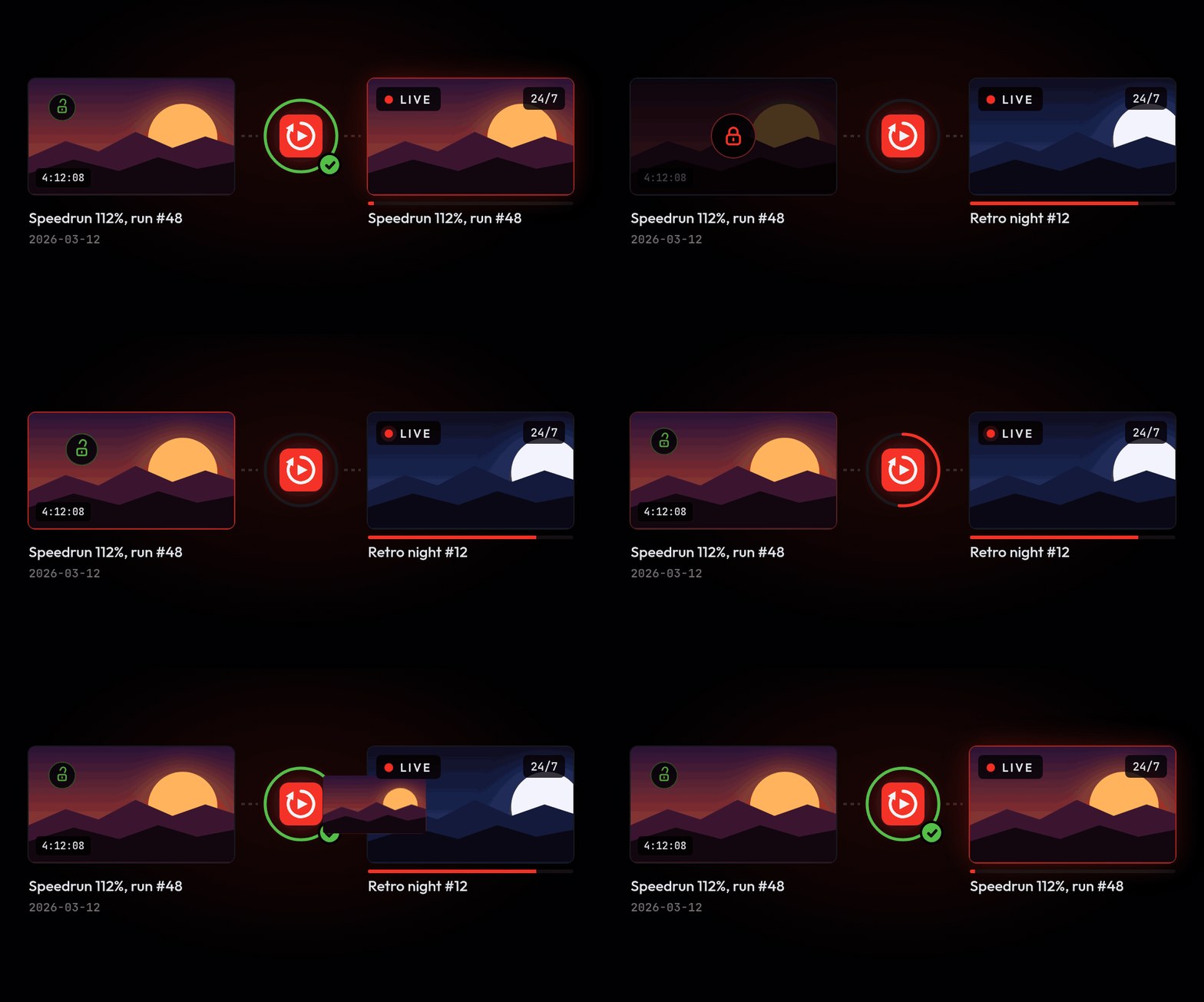
A subscriber-only VOD unlocks, is archived in VOD247 and goes live on your 24/7 channel.

If part of your Twitch archive was locked to subscribers, VOD247 now fetches it like the rest.

Upload your own videos
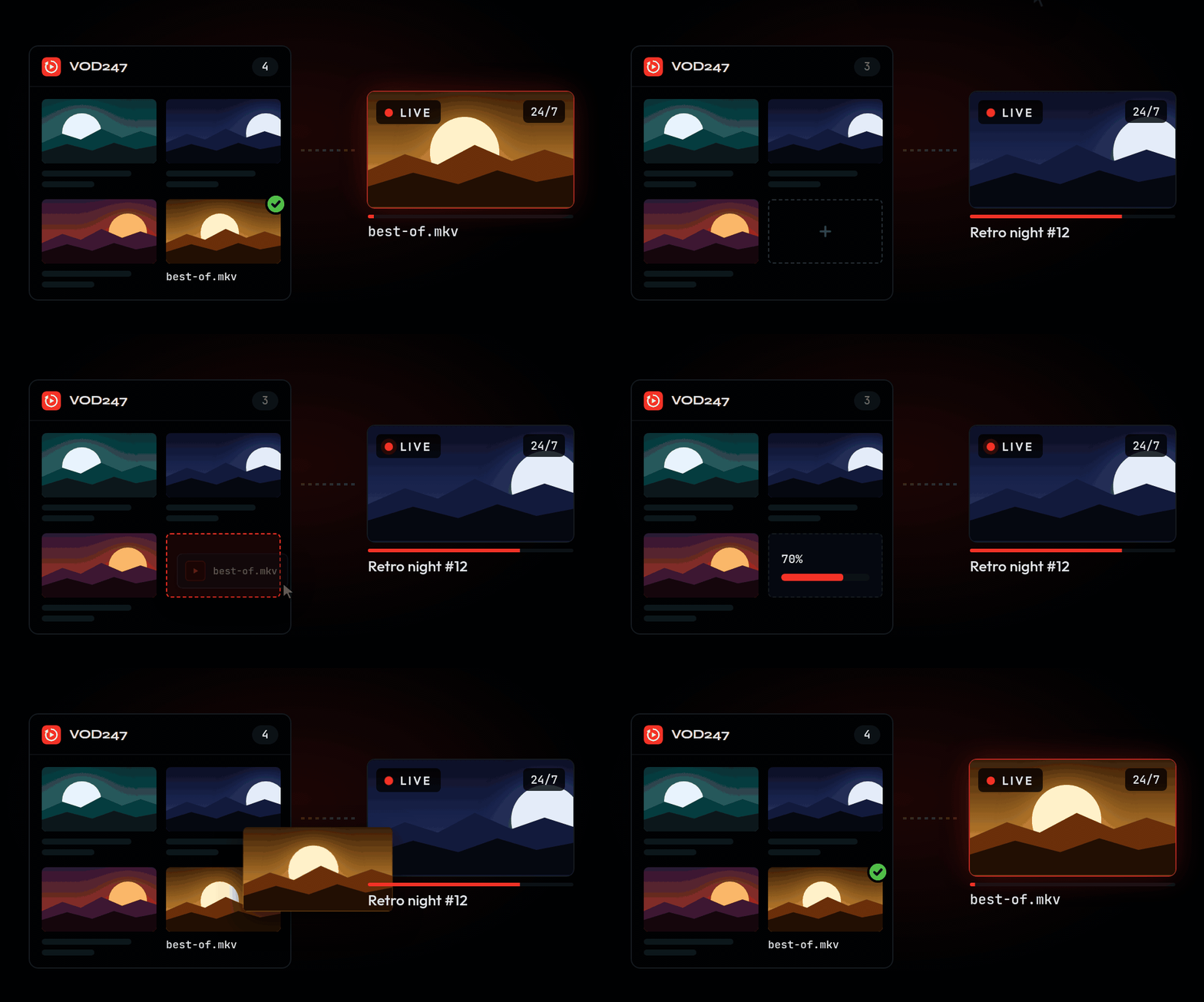
The file best-of.mkv is dropped into your catalogue, uploads, then goes live on your 24/7 channel.

An OBS recording, a VOD Twitch deleted, a best-of: drop them into your catalogue and they air just like your VODs.

Open my catalogue

Augustin, VOD247

Read the update

Your channel warns you when it drops, and sums up your month

Two new features just landed on VOD247: you no longer have to keep an eye on your 24/7 channel, and it answers in its chat under its own name.

Email alerts and a monthly recap

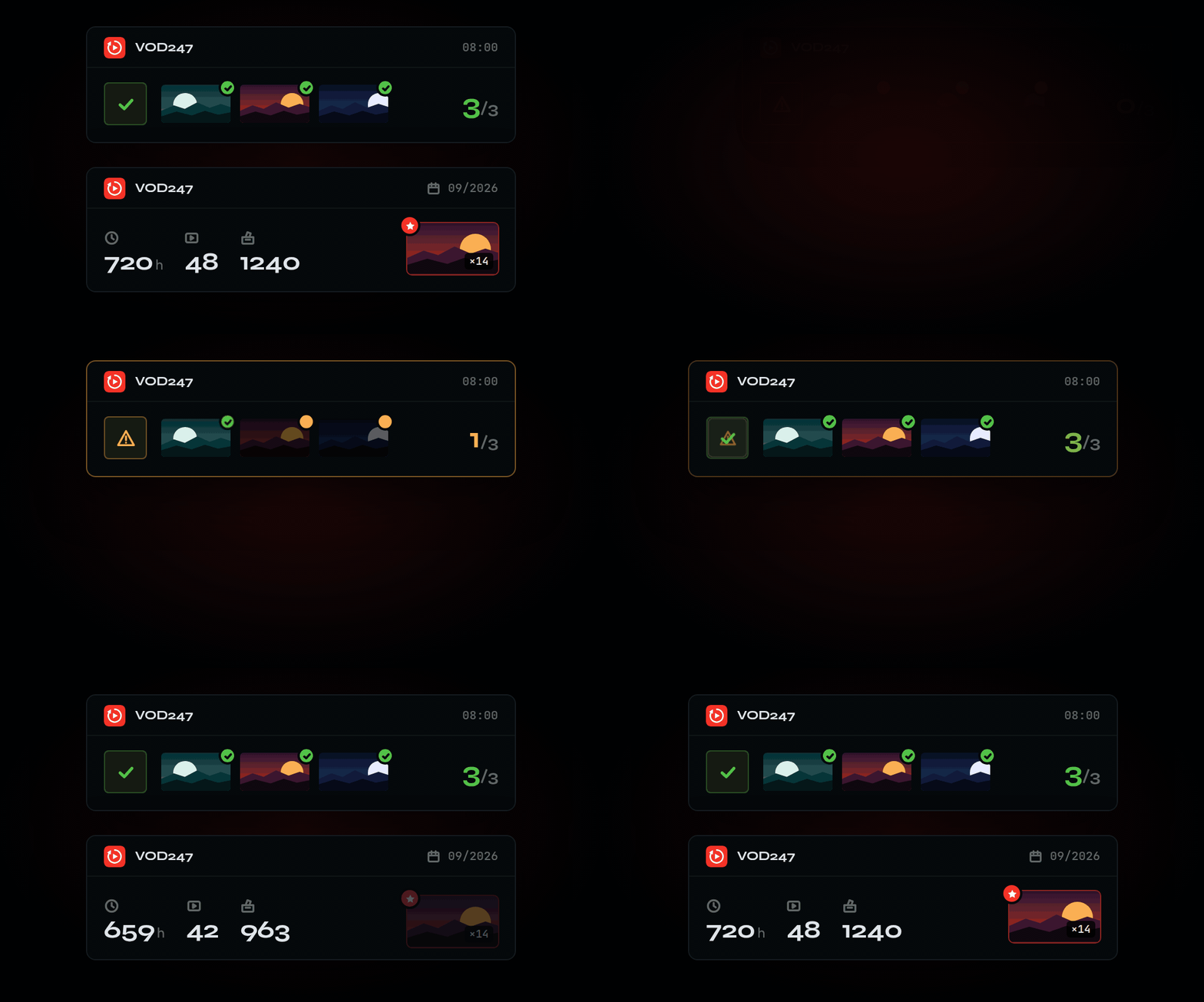
An email alert flags 3 unarchived VODs, they get archived, then the monthly digest arrives.

VOD247 emails you when your channel goes off the air (and when it is back), when the Twitch authorisation is lost, when storage is nearly full, when VODs may vanish from Twitch, or when a setup step has stalled. On the 1st of the month you get the recap: hours on air, votes, most-voted VOD.

In the Notifications tab you switch each kind off separately: alerts, setup reminders, recap, product news. Billing emails are always sent.

Your channel speaks in its own chat

Announcements, votes and polls now go out through your channel itself, not a shared account. If chat stays silent, the dashboard asks you to reconnect your channel: one confirmation on Twitch is enough.

Set my notifications

Augustin, VOD247

Read the update

Setup now walks you from your main channel to going on air

Setup was rebuilt so your 24/7 channel gets ready without you guessing the next step.

Your main channel first

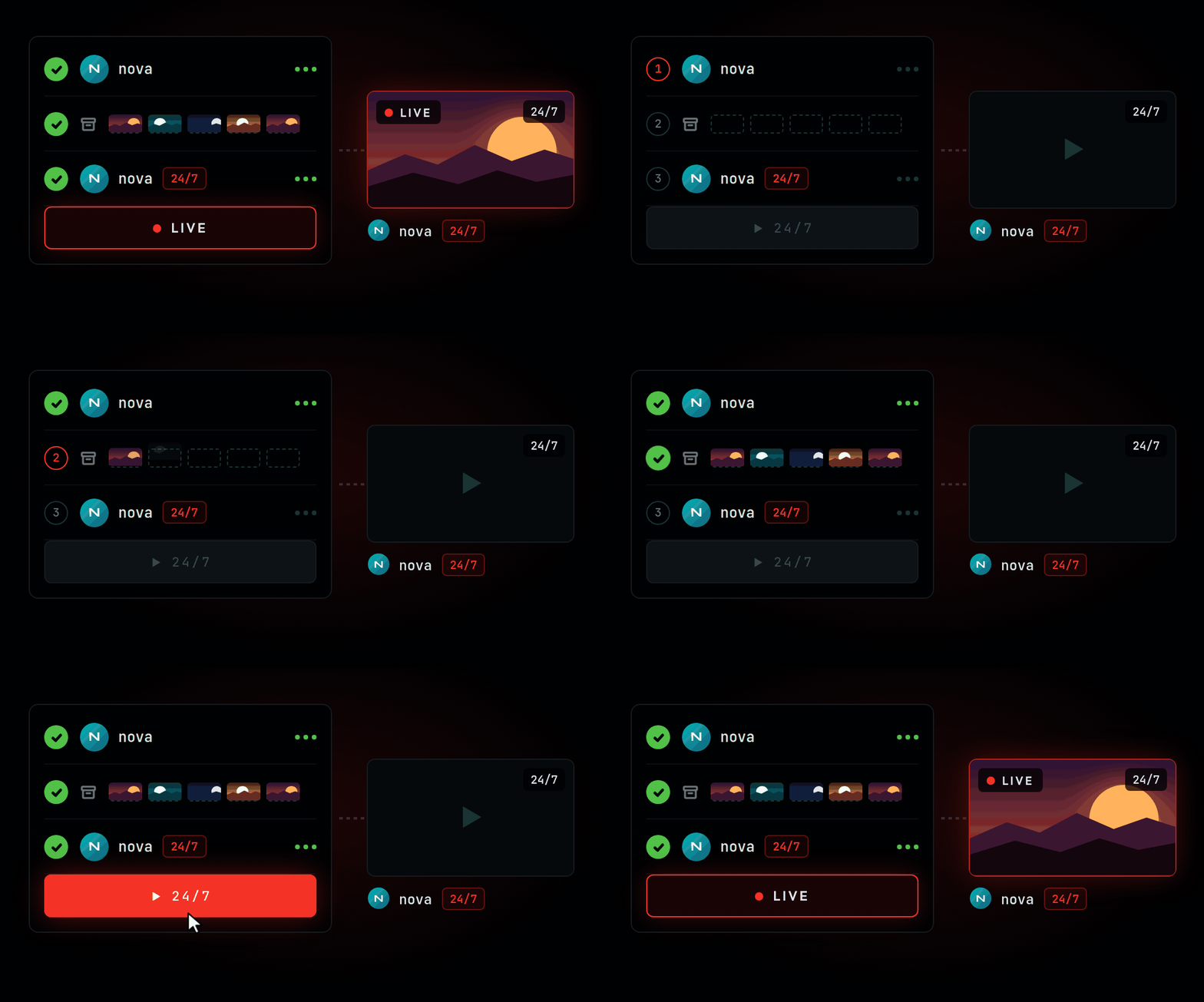
Your main channel connects, your VODs get archived, your 24/7 channel connects, then one click takes it live.

You connect your main channel, then pick the 24/7 channel that will replay your VODs. You pick up where you left off, even if you close the page.

A first-steps checklist

Until your channel is on air, the overview shows what’s left: choose a plan, archive VODs, start. The Start button turns on as soon as one VOD is archived.

A catalogue that’s too thin, flagged before you pay

If your catalogue is too short to carry a 24/7 channel, you hear it before subscribing, with ways to fix it.

Open my setup

Augustin, VOD247

Read the update

Your chat picks the next VOD on your 24/7 channel

On your 24/7 channel, your chat programs what comes next: viewers suggest VODs, vote, and the winner goes on air.

Chat votes on the next VOD

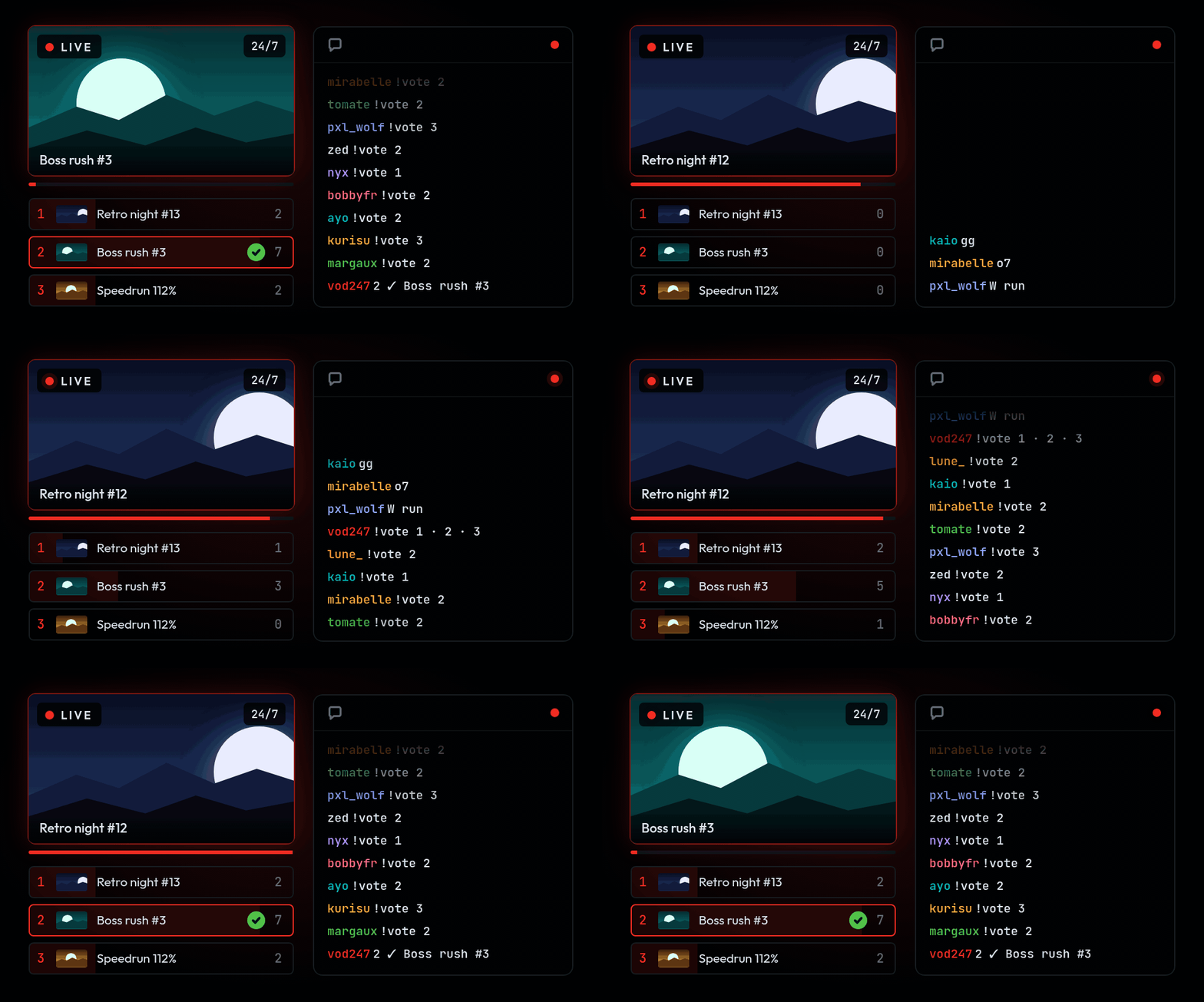
Chat types !vote 2, the winning VOD gets a green check and goes on air.

Before each VOD ends, viewers suggest with !request, then vote in a Twitch poll, or with !vote 1, !vote 2… if your channel can’t run polls. And when nothing is on air, a quick vote opens on its own instead of leaving the screen black.

The bot answers your chat

A viewer drops in mid-stream? !vod shows what’s on air and its date, !next the one after, !live tells them whether you’re live on your main channel. The bot speaks your channel’s language.

Set up chat voting

Augustin, VOD247

Read the update

Your VODs, on air 24/7.

VOD247 archives the VODs, keeps the session alive and lets chat program the next one.

Connect my Twitch